
Telegram getting started guide: install, sign in and sync in ten minutes
Follow the eight steps below in order. By the end you will have Telegram installed on at least one device, be signed in, have hardened the account with two-step verification and be ready to explore channels, groups and Saved Messages.

 Step 01 of 8
Pick your first device
Telegram anchors an account to a phone number, so the mobile app usually goes first. iPhone and iPad users open the App Store listing; Android users grab the signed APK or the Play Store version. If you cannot install anything, Telegram Web works too.
- Step 02 of 8
Install and open the app
The install itself is instant. Grant notification permission on first launch - Telegram uses standard push channels so battery drain stays negligible.
 Step 03 of 8
Enter your phone number
Tap Start Messaging, pick your country, and confirm the digits. Telegram sends a verification code via SMS - or, if you already have an active session, straight into your existing Telegram chat.
 Step 04 of 8
Set a display name and avatar
Your name is public inside chats and channels but your phone number stays hidden unless you allow it. Add a photo now to make it easier for contacts to find you.
 Step 05 of 8
Enable two-step verification
Head to Settings → Privacy → Two-Step Verification. Choose a strong password plus a recovery email so a SIM swap alone cannot take over your account.
 Step 06 of 8
Add the desktop client
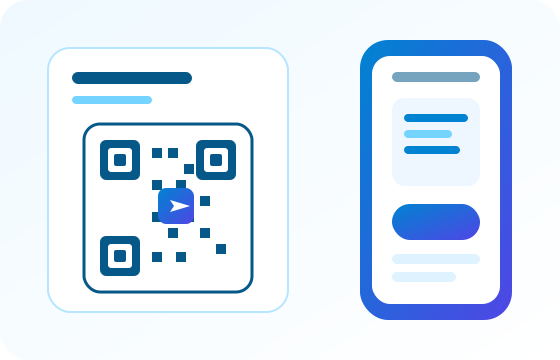
Install Telegram Desktop for Windows or the Mac client, then scan the QR code shown on the login screen using your phone camera. Cloud chats sync in seconds.
 Step 07 of 8
Explore chats, channels and Saved Messages
Open a couple of public channels to seed your interests, favourite a few chats, and use Saved Messages as your personal cloud clipboard - anything you send there lands on every device instantly.
 Step 08 of 8
Tune notifications and Focus modes
Silence group chats you follow but do not react to, keep DMs loud, and pair Focus modes on iOS or Digital Wellbeing on Android to hush noisy work channels outside working hours.
Common bumps and how to smooth them
The SMS code never arrives.
Wait 90 seconds and tap "Send code as call". If you already have Telegram on another device, check that chat for the code. Roaming numbers may need "Get code via Telegram" from a previous session.
I logged in but chats are empty.
Cloud chats download progressively. Leave the app open on Wi-Fi for a few minutes - large media libraries can take 5-10 minutes to backfill. Secret Chats do not migrate; they stay on the original device.
Notifications are late on Android.
Some OEM battery savers kill background services. Whitelist Telegram in the phone's battery settings (Samsung Device Care, Xiaomi Autostart, etc.).
I want to change the phone number.
Settings → Edit Profile → Change Number. Contacts who saved your old number will be re-linked automatically, cloud chats stay intact.
You're set up. What's next?
Explore the feature tour to see everything Telegram can do, read the security overview to lock the account down further, or head to the FAQ if a specific question pops up.